
Hi everyone,
Back in the summer, I put in an order for the then upcoming A600GS from AmigaKit. Sadly, I have not been very active since then. Various circumstances also put a stop to blogging. Recently, I’ve had more time and energy to look into this little machine.
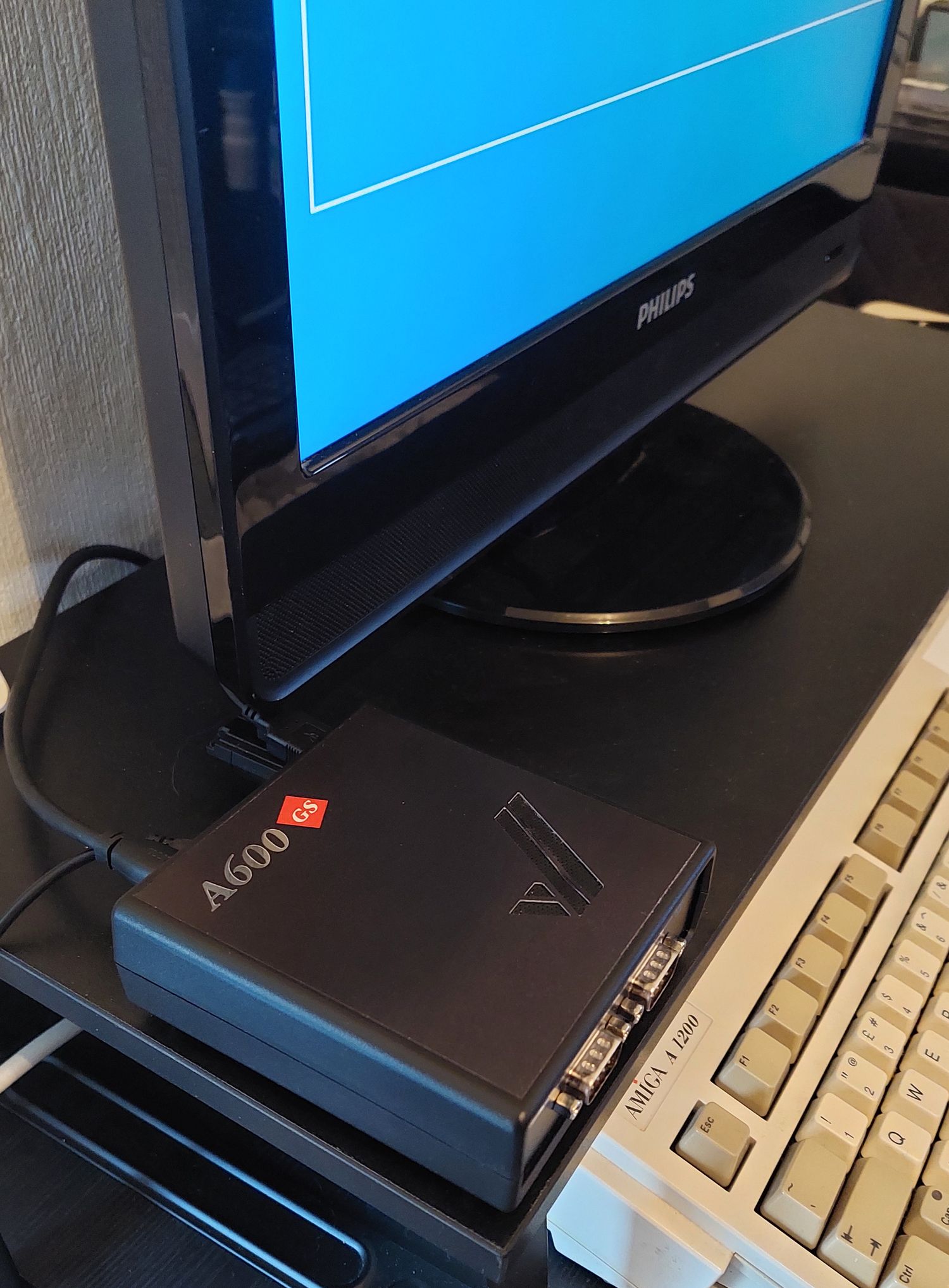
Thought I’d do a quick write-up about how it has worked for me so far. I hope you’ll find it helpful if you are in the market for one, or of interest if you are just curious about it in general. 🙂
About the A600GS
The A600GS is a new games and computer system created by AmigaKit. It has an inbuilt menu and launcher for games, applications and demos. Beside this it has its own operative system called AmiBench.
Specifications:
- Orange Pi Zero 3
- All Winner H618 Quad-Core Cortex-A53 ARM 1.5 Ghz
- 4 GB RAM
- 64 GB of storage capacity
- 3 x USB 2, 2 x ports for old Amiga mouse and joysticks, Micro-HDMI, Ethernet, Wi-Fi, Bluetooth, 3.5 audio port
According to the website of AmigaNG, the board is slightly faster than a Raspberry Pi 3. It is also faster than THEA500 Mini. Still, it is not as fast as a Raspberry Pi 4.
The software is being run through an emulator called Amiberry. Work is on-going on drivers to make AmiBench use the hardware natively.
Modern keyboards and mouse, either wired or wireless, can easily be connected to it. Devices can also be connected with Bluetooth. You can connect to the Internet for updates and downloads through Wi-Fi or Ethernet.
Also, which may be surprising to some, is that it has 880K Floppy Drive Support, and can read and write to real 880K floppy disks through DrawBridge USB floppy drives (hardware additional purchase).
The Content
I received it during summer/early autumn. Keep in mind that I did not take many photos of it then. The ones below are new ones taken recently. 🙂 My impressions are also from the last days when I’ve spent time with it. Now, let us have a look at what the package contained.
Here is the box itself:

Inside the box was the A600GS computer, a gamepad, power-lead with on/off-button, manual, and a micro HDMI-cable.


Installation
Setting up the A600GS was quite straightforward. First, I hooked up the unit to an old Philips I90TW 19″ TV with the included micro-HDMI to HDMI cable. For sound I prefer using a headset, so I connected that to the 3.5 inline audio port. I then plugged in the USB-transmitter for my wireless keyboard and mouse combo from Logitech. I also plugged the included gamepad into another USB-port.
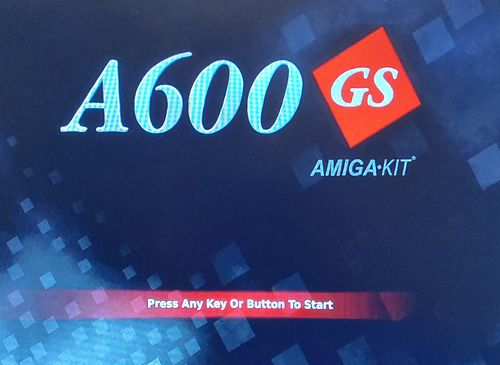
With that set, I was ready to do the first boot. The manual includes all the information you need on how to do this.
Internet and AmiSphere
Upon first boot, I highly recommend getting the computer registered through AmiSphere. To do this, you need to set up an Internet connection. A very easy (and quick) way is to share Internet from your phone and let the A600GS connect to that. There is a menu tab called Network on the left hand side of the screen. Click on it. Then make a new Wifi connection. Connect to this one and you are all set.
To create an AmiSphere account, click on the Create Account in the menu. Fill in all the details. Select the other tab called Register Product to get the computer registered.
Once Online and with an AmiSphere account, you’ll get access to downloads and updates. These include the newly included game, Santatron 2024 from Nivrig Games (and a lot more). 🙂
AmigaKit is regularly putting up new software, so it is worth checking in from time to time. For AmigaOS 4 users, I can report that all my purchases from AMIStore showed up in the list of downloads.
AmiBench
One of the major features of the A600GS is AmiBench. This is an OS developed by AmigaKit. Users of Enhancer on AmigaOS 4 will recognize a lot of its contents from there. I have not tested AmiBench much myself yet. I am looking forward to investigating it further. I am especially interested in using it with software like Hollywood from Airsoft Softwair.
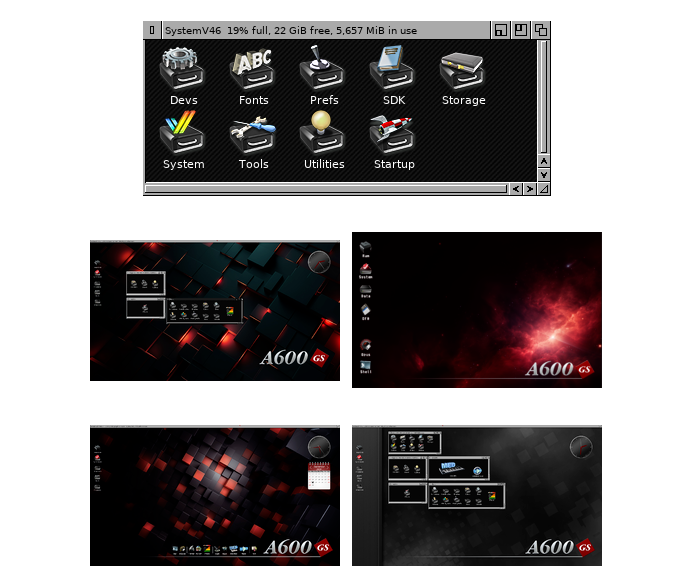
AmiBench is partly built upon AROS and contains datatypes, commands and so forth from AmigaKit and A-EON Technology. You’ll get a high resolution desktop with modern looking icons. It looks similar to a spiced up Workbench. There are many included applications ready to go, like Hippoplayer, Directory Opus, OctaMED, Personal Paint, Final Writer and more.
If you want to add more programs and games, you can for example put those on an USB stick and copy them over to the A600GS and use them in AmiBench.
Keep in mind though, that not all software is compatible. The only way to find out it is to try and see. You can also visit a thread on Amiga.org created by SkulleateR which lists working and non-working software. The information provided there comes from A600GS users.
The Launcher
As mentioned earlier, the A600GS has an in-built launcher and menu system. Here you can configure everything from resolution, audio, network and so forth. More importantly, it is here you add games, programs and demos and launch them through the menu.
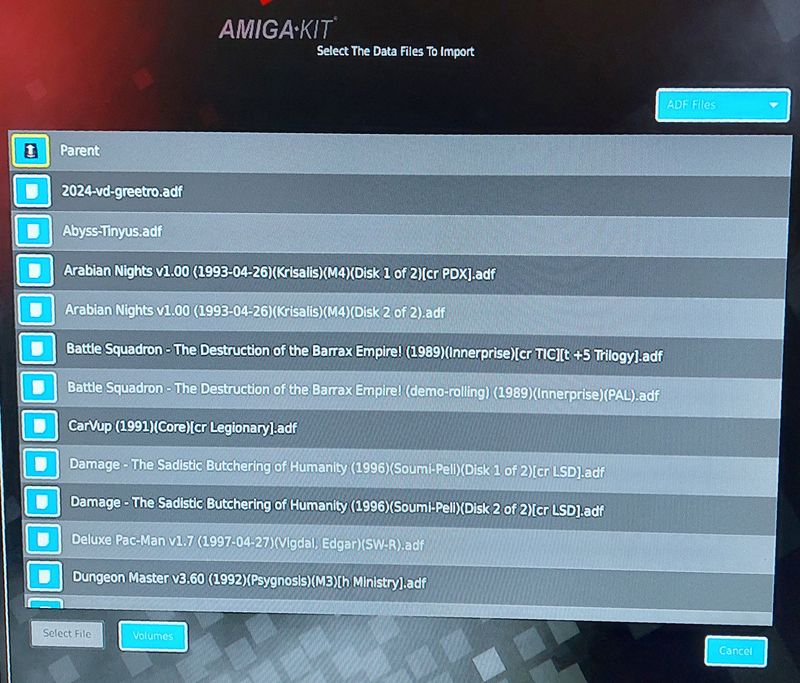
Software can be added as ADF, WHDLoad or HDF. Each title can be configured to use the Kickstart version of your choice, be it the integrated A600GS one, Kickstart 1.3 or Kickstart 3.1 (and others).
Please note, however, that only the A600GS Kickstart is included! You will need to add the other ones yourself due to licensing issues. Fortunately, these are easily available through Cloanto’s Amiga Forever package for example.
HDF is the format you’ll need to use to bring a Classic Amiga harddrive setup over to the A600GS. You can create this in WinUAE on the PC. I set one up quickly with 850 MB. Installed Workbench 3.1 to it and added my development folders for Void (Blitz Basic, AMOS etc.). I then copied it over the computer and added it as an HDF using Kickstart 3.1 and Amiga 1200 “mode” and it booted fine. It was then like using the Amiga 1200, but with different hardware of course.
WHDLoad and ADF are excellent for games and demos. With WHDLoad you don’t have to worry much about compatibility and setting the right system up, as well as not needing to change disks while playing.
With ADF you must have a little bit of knowledge about whether the software works on the Amiga 500 or Amiga 1200 for example to set it up correctly. There are many demos and games that does not have WHDLoad support and these will be in the ADF format.
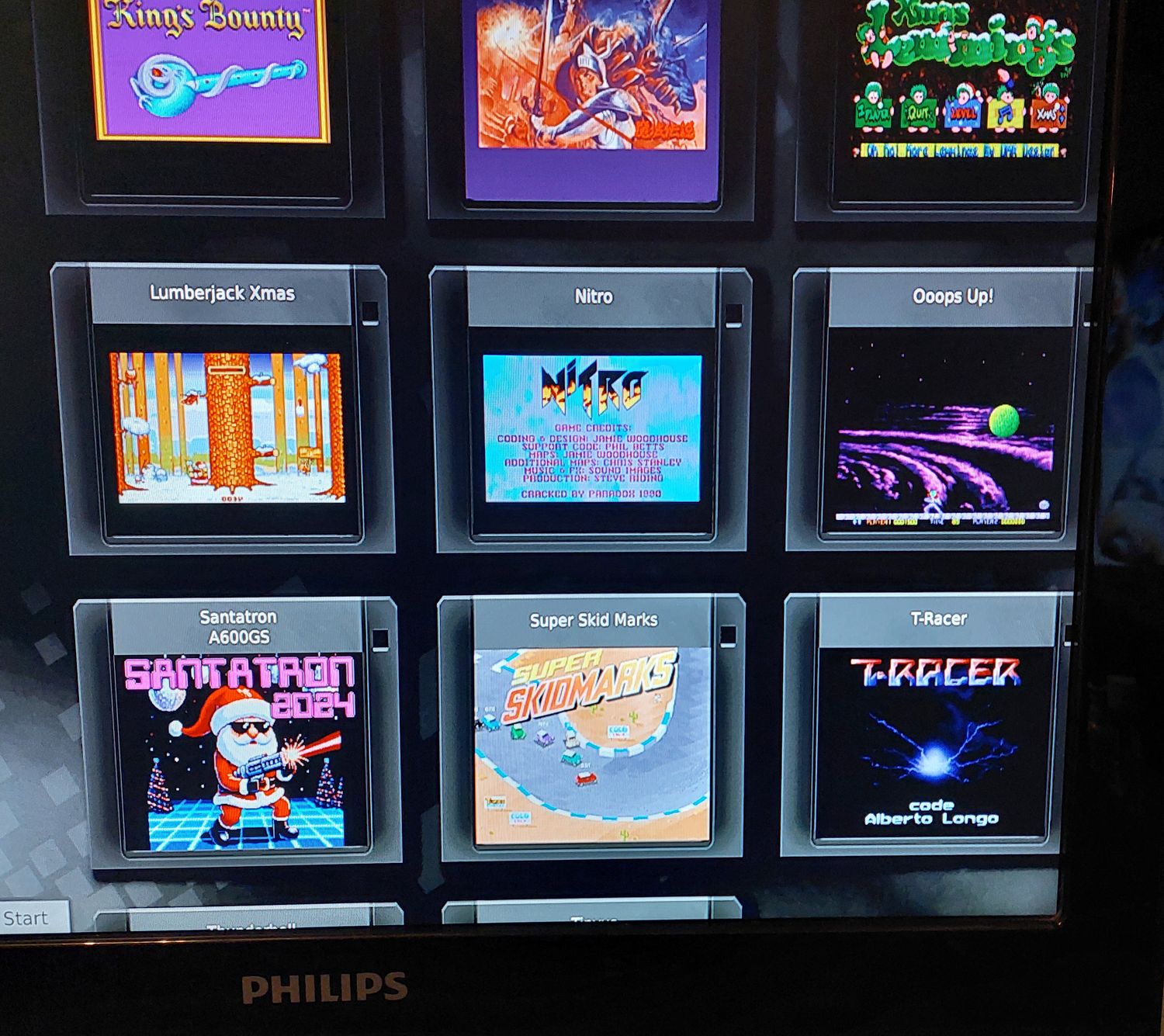
Each piece of software can be edited in the menu to contain a thumbnail. You can make your own by taking a screenshot while running the software and save it as a thumb.
You can also add information about the publisher and so forth. Very nice! I like configuring stuff like this, and it makes the menu of the launcher look great! 😉
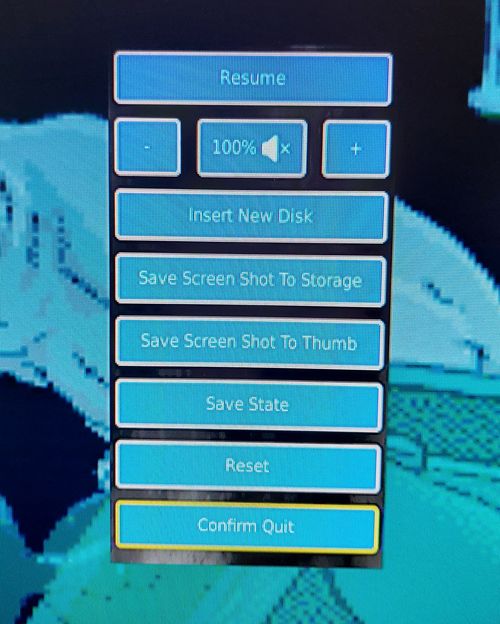
Another feature, which you can see from the screenshot above, is that you can save your progress in games by using “Save State”. Many games on the Amiga does not contain a save game feature, but here you can save whenever you feel like it. Image playing Pinball Dreams for 25 minutes and you are on the roll with a superb score, but then you suddenly have to leave… Now you can save the game and come back later to improve the score even more. 😉 Very handy I think!
As for compatibility, you’ll just have to try and see what works and what doesn’t. The A600GS is still new in the market and people have not tested everything yet. The machine gets updates regularly, with fixes and improvements, so if something didn’t work two months ago, it might work now. 🙂
More Information
The go-to place for the A600GS is Amiga.org. Here you can participate in discussions, report bugs, get technical help and so forth.
Another place to visit is the official A600GS Wiki:
https://wiki.amiga.org/index.php/A600GS
It is filled with helpful information on everything from AmiBench to explanation of the different buttons on the controller and what they do.
The product page on the website of AmigaKit can be found here.
My Experience
My opinion of the A600GS is very positive so far. Although I have not used AmiBench much yet, I have tested many games and demos through the launcher. Most of what I’ve tried so far works great!
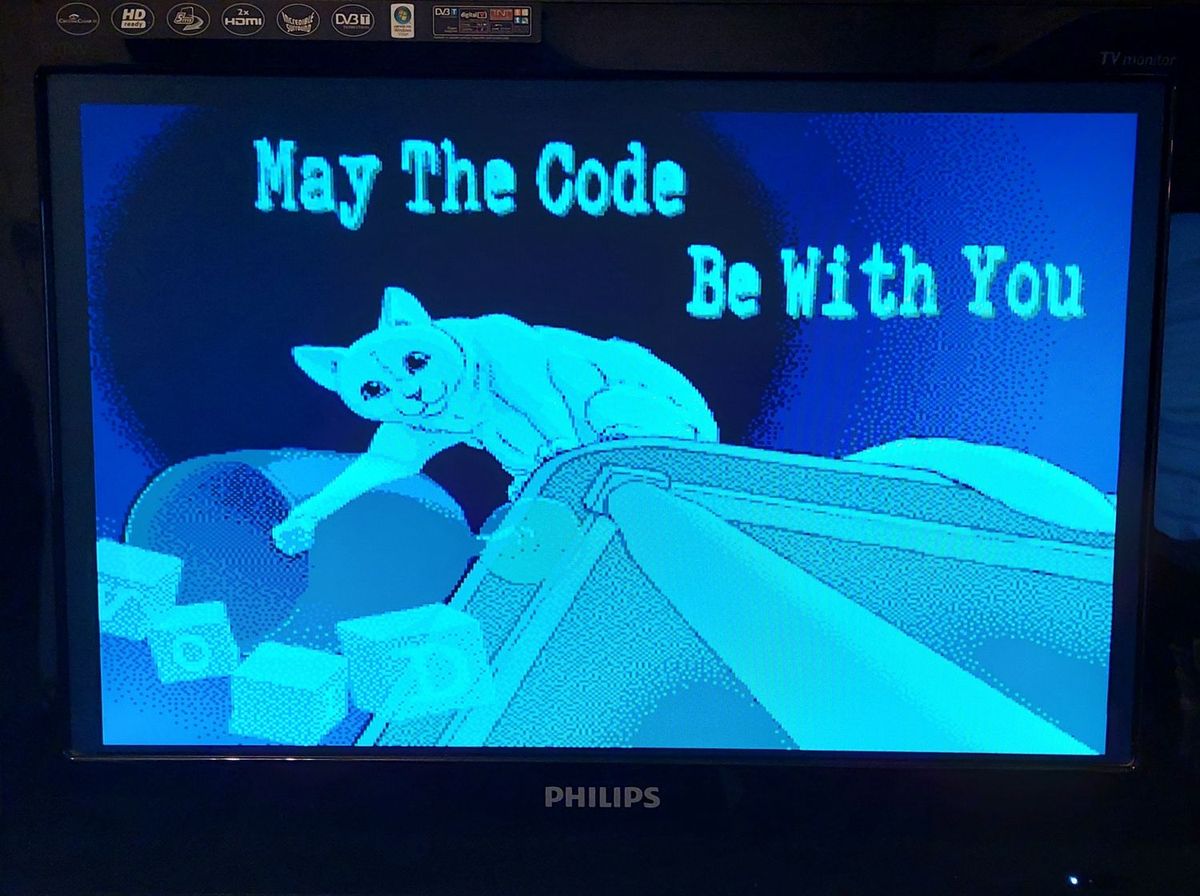
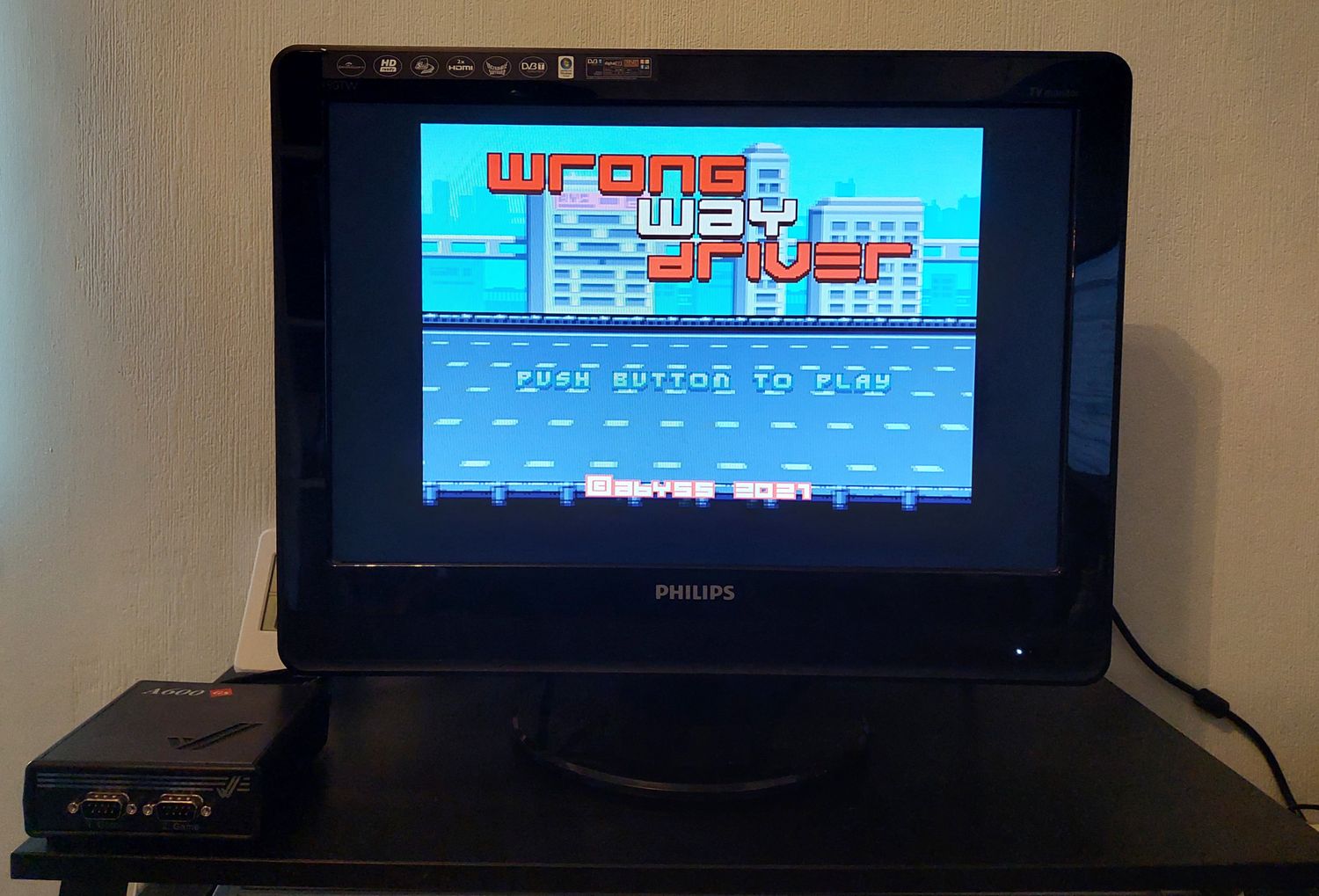
This includes several productions from Void, including the Absolute Dølle music-disk and the demo Greetro from Space released at MountainBytes 2024, as well as many games like Wrong Way Driver by Abyss and Deluxe Galaga (available as a download). The racing game Nitro runs well too! For other activities, I have used the Workbench 3.1 HD setup (the HDF file I mentioned earlier) and that one also runs nicely.
Another aspect that I think is important, is that it was very easy to hook up a keyboard and a mouse to the unit. Maybe I was lucky, but this worked flawlessly. No need to fiddle with any settings at all. In my case it only takes up one USB-slot. 🙂
One of the most important things is that the A600GS is regularly updated. New games are added, bugs are taken care off and drivers for AmiBench are either improved or added. This is big advantage compared to THEA500 Mini, which does not have this level of active on-going development behind it.
All in all, I’m very happy with my purchase and I’m looking forward spending a lot of time with it the coming year.
Thanks for reading my review of the A600GS. Hope it was of interest. See you in another post here on the Old School Game Blog!
PS: Any other A600GS out there? If yes, what are your experiences with it? Are you happy with it? Hope to hear from you in the comments.


[…] of you may remember that I published a review of the A600GS in December 2024. I’ve been pleased with this little computer and have used it for everything […]
LikeLike