
Hi,
Thank you for visiting Old School Game Blog.
Today I’m going to write about how to install the brilliant RTS game The Battle for Middle-Earth (BFME) on a PC running Windows 11, and how you can change to a higher resolution than it originally supported.

For this post, I’ve used my original copy of the game, which I purchased many years ago. This means that the text is aimed at users using the DVD to install it.
Installation
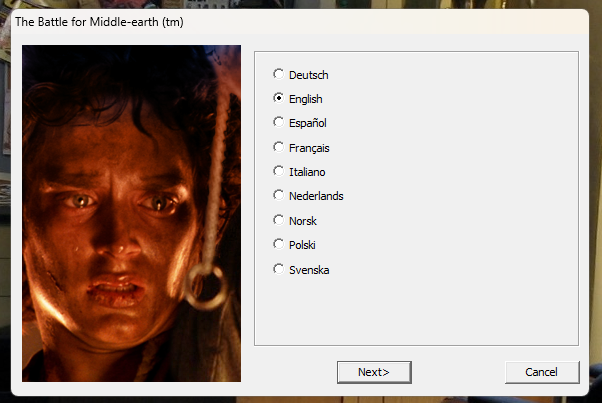
- Select language and click “Next”
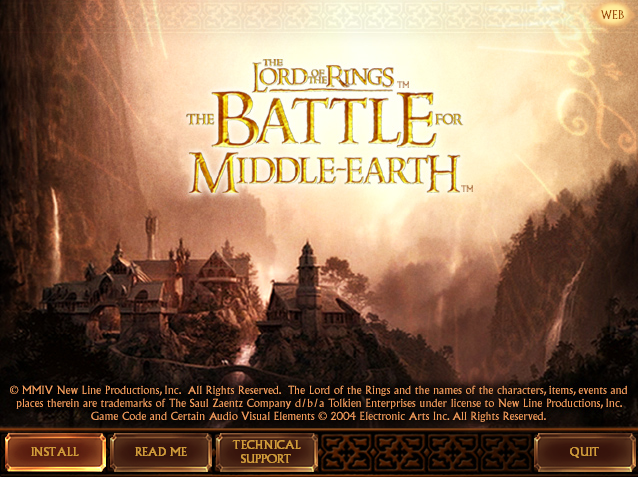
- Click “Install”

- Enter the code found on the back of the manual and click “Next”

- Choose either “Typical User” or “Advanced User”. The difference is that you can choose which directory to install to as an “Advanced User”. Click “Next”
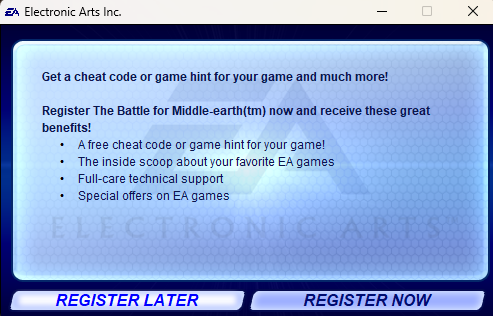
- Click “Register Later” to skip registration
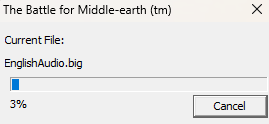
- Installation starts and you can see the progress indicator increasing
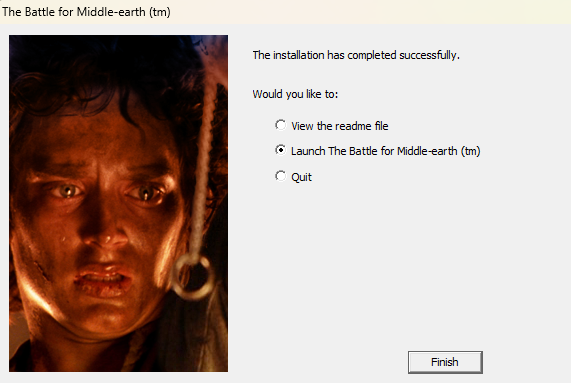
- The installation is complete. Now you can click finish.
Changing the Resolution
The problem when installing it on Windows 11 is that the default resolution is set to 800 x 600, which is too small. You can increase it a little bit in the in-game options, but not much.
So, how can you run it at 1920 x 1080 for example?
Here is the solution:
- Locate the file Options.ini. You can find it here: C:\Users\yourusername\AppData\Roaming\My Battle for Middle-earth Files\Options.ini
- You can take a backup of the file before editing if you want.
- Open Options.ini with Notepad
- On the line “Resolution = 800 600” change it to “Resolution = 1920 1080”. You can input any resolution you want to try different ones.
- Save the file
When you launch the game now, you won’t see much difference to begin with, but when a mission or a skirmish starts, you’ll see that the resolution is much better. 🙂
Hope this was of help to some of you out there!
I’m very happy that Battle for Middle-Earth is playable on Windows 11. It is a great RTS game I often find myself returning to, like during the Christmas holidays not long ago. I have it installed on my Windows XP laptop, and now on my main Windows 11 computer.
Thanks for reading! Have a good weekend! 🙂
 Old School Game Blog
how is it playable?? It wont run at all and does not even launch? how did you get it to run? ive been struggling months on end trying to follow some peoples “Magical guide” to get it to work. I bought the Anthology, so far im out 240 bucks and no working game.
LikeLike
don’t know if you’ll see this but I had to install BFME 2 before the folder for BFME 1 would appear. For some reason BFME 1 wouldn’t even recognise the disc but 2 does – wait for the loading screen to appear for 2 after installation and you can go into the folders and simply create a text document, paste in the info here and bingo. After this I was also able to install BFME 1 as well for whatever reason!
good lucj
LikeLike
Whic folders must I go into, I can’t find the game here C:UsersUserAppDataRoaming It does not appear at all, can I create a new folder The Battle for Middle-earth ™ II in the same address and save the Options.ini folder there?
LikeLike
Hi Inkabinde!
It might be that the folder is invisible. If so, please try the following:
– Open File Explorer with Windows+E
– Go to where you think the folder is
– Click the “View” tab
– Find the show/hide group, check the box next to “hidden items”
Hope this helps. 🙂
LikeLike